Showing posts with label #ITBlogAwards. Show all posts

Saturday, October 14, 2023

Automating Network Configurations with Jinja2 and Python: A Step-by-Step Guide

 In this post, I worked on collecting a code that works with Jinja template.


the nice thing in working with Jinja is that you can have baseline configs that will be used to all devices and also have variables that will be changed according to your need.


for example: in each device which can be a router, you will have:

1. southbound links to switches and let's assume an interface used for this G1/0/48

2. you have NTP servers to be configured on these routers

3. hostnames

4.routing protocol

.......etc.


all these can be variable in Jinja template which we can use along with python to generate configs. and maybe even later we can use to push to network nodes.

this can automate our work, on the longterm this can make our job easier and more consistent.


let's start by making a directory which we can call routers_configs

in this directory we will have three files:

1. jinja file which is our router configs template and it should have the following:

file name is >> cisco_template.j2

as you can see in template below, you can have a complete configuration file ready and change the parts that you want them to be replaced from your CSV file with the {{ variable }} as below>>

hostname {{ router_name }}
ntp server {{ ntp_ip }}
interface loopback 0
ip address {{ ip_address }} 255.255.255.255
router {{ routing_pro }}
int gig {{ int_number }}

2. devices information, which can be a CSV file where you have saved your new devices list and information that you will add to these devices. 

the file can be used as below with comma to separate the rows.

router-bgd, 192.68.1.2, 2.2.2.2, ospf 1, 1/0/48

router-suly, 172.16.1.1, 1.1.1.1, ospf 1, 1/0/48

rtr-erbil, 10.0.0.1, 1.1.1.1, ospf 1, 1/0/48

router-bgd2, 192.68.1.3, 2.2.2.2, ospf 1, 1/0/48

router-suly2, 172.16.1.2, 1.1.1.1, ospf 1, 1/0/48

rtr-erbil2, 10.0.0.2, 1.1.1.1, ospf 1, 1/0/48

3. file is the python code that we will use to render the information in these two files and printout the configs to an external text files for each device. and we will name the file as ciscojinja.py

import csv
from jinja2 import Environment, FileSystemLoader
#these must always added

file_loader = FileSystemLoader('.') #check this directory to find jinja template

#load environment

env = Environment(loader=file_loader)

template = env.get_template('cisco_template.j2') #find the jinja file and get it

with open ('info.csv') as info_source:
csv_file = csv.reader(info_source)
for row in csv_file:
csv_router_name = row[0]
csv_ip = row[1]
csv_ntp_server = row[2]
routing_protocol = row[3]
interface_slot = row[4]
output = template.render(router_name=csv_router_name, ip_address=csv_ip,
ntp_ip=csv_ntp_server,
routing_pro=routing_protocol,
int_number=interface_slot) #these names must be compatible with jinja template names
with open(csv_router_name + '.txt', 'w') as configs:
configs.write(output)


when you run the python code, you will notice that other text files will be generated that contain configuration rendered from the CSV data. check below:


you can copy these and iterate to what else you need. next will be added more jinja templates to specific parts of configs, for example: jinja template for bgp configs only or ospf only or ACL's and prefixes.


Hope this is helpful.


Friday, September 15, 2023

Automating Firewall Access with SSH Keys for Seamless Network Management


In this post we are going to talk about how to login to the firewall using public key generated from your Linux machine (Network Jumper box) which can be useful in case you want to push scripts to the firewall without the need to authenticate with username and a password, let's go:


1. generate the key

samer@Samers-MacBook-Pro ~ % ssh-keygen

Generating public/private rsa key pair.

Enter file in which to save the key (/Users/samer/.ssh/id_rsa):

/Users/samer/.ssh/id_rsa already exists.

Overwrite (y/n)? y

Enter passphrase (empty for no passphrase): press enter

Enter same passphrase again: press enter 

Your identification has been saved in /Users/samer/.ssh/id_rsa

Your public key has been saved in /Users/samer/.ssh/id_rsa.pub


here you have created the key on your machine, and you can check it using the command $ls ~/.ssh/ which will view the existence of the generated keys in your hidden directory  of ssh.

samer@Samers-MacBook-Pro ~ % ls ~/.ssh
id_ed25519 id_ed25519.pub id_rsa id_rsa.pub known_hosts

 now you need to copy the public key to the server or firewall or router you want to access and you can do this using:

1. SCP or....

2. importing it on the firewall using GUI.


press OK, then COMMIT.

now you can check access and as you can see below image, the user we used to access was api, if you don't specify the user, the terminal will use your machine name which is in this case "samer" and authentication will fail so we will use the same user "api" but no password will be prompted:


so the main idea here is that as network automation is important and it is recommended that you use LINUX machine as jumping box to do your scripts/codes to do your automation and programming tasks.

so it is better to use the SSH generated keys to login to devices, this will make running automated tasks easier and does not require user/password entering. (for example: no need to input password for netmiko while running a python script).

running CRON-TAB tasks that will also make access easier while it is still secure.


hope this was helpful.


Wednesday, January 5, 2022

Network Engineering and Automation Questions for review or prepare for Interview


Hello everyone,

As you know, many of us study and struggle a lot in order to reach the level where we can call ourselves Network Engineers, however studying and learning process is not enough because we will forget what we studied after a while if we don't use it, and while trying to learn new things and stay up-to-date, landing new jobs will need to stay fresh on many of the networking topics.

you might be a great network engineer, but you will not be able to get the job based on incomplete answers about topics you already know but forgot how to talk or explain them in an interview.

I was thinking to make a Anki flashcards for Network Engineers that are willing to apply for a job or review networking topics, so I started working on this and the below link contains the file that I will continue to update and re-upload on daily or weekly bases.  

https://drive.google.com/file/d/1wboDLmZeL1DL_onoDCpt05Pc_7wBq79s/view?usp=sharing


This file contains the following topics:

1. BGP

2. OSPF

3. Network Automation

4. Devops

5. MPLS

6. TCP

7. EIGRP


you can download then open with ANKI software on your computer.

anki software > https://apps.ankiweb.net/


I hope you benefit from it. 


Samer.


Friday, December 10, 2021

Resolving Telemetry File Sending Issues on Palo Alto Networks Firewall

 In this post, I will be talking about a problem that you may face with PaloAlto Networks Firewall.

the problem can be seen with log that is generated by the Firewalls while trying to send telemetry file and failing:

10>Dec 6 23:40:04 FMC-PA-820-PRMARY 1,2021/12/06 23:40:04,0120010412345,SYSTEM,device-telemetry,2561,2021/12/06 23:40:04,,send-failed,,0,0,general,critical,"Failed to send: file

the problem above is informing us about the existence of an issue in sending telemetry file to PaloAlto cloud.

what does this means?

The firewall collects and forwards different sets of telemetry data to Palo Alto Networks based on the Telemetry settings you enable. The firewall collects the data from fields in your log entries (see Log Types and Severity Levels); the log type and combination of fields vary based on the setting. Review the following table before you Enable Telemetry.

source: https://docs.paloaltonetworks.com/pan-os/9-0/pan-os-admin/threat-prevention/share-threat-intelligence-with-palo-alto-networks/what-telemetry-data-does-the-firewall-collect.html 

it means we have to fix this issue because it is important.

ok, so one thing to notice here is that the relationship between PaloAlto firewall and PaloAlto cloud is a client-server relationship and since this is going via the internet, authentication and encryption must take a place in this process so secure the connection between Client-Server.

which means we need to authenticate our firewall in order to get the telemetry sent to PaloAlto Networks Cloud.

how we are going to authenticate? the answer is via certificate.

what you need to get this certificate?

1. Telemetry must be enabled and this can be done like this > click on settings icon and enable and choose region. then commit


2. Support and access to support portal of PaloAlto

3. Serial numbers of your firewalls that suppose to be under support.

once you logged in PaloAlto support portal go to > Assets > Device certificates > Generate OTP

here you will must select the serial of the asset and then generate the OTP and copy it.

now you must go back to > Device > Management > Device Certificate > Get Certificate

paste the OTP and apply it, this should make you see success fetch status like below.


Note: above image shows after the certificate import done.

Once all of these steps finished, you should be able to generate telemetry file by doing this>

Device > Telemetry > settings icon > Generate.


I hope this was useful.

Samer R. Saleem

Thursday, December 9, 2021

Configuring Cisco Call Manager for Conference Call Setup

 In this post I will be configuring Cisco Call manager to allow users to join a phone call to make a conference.

follow the following steps:

1. Login to CM Administration page

2. Go to Call Routing > Conference NOW

3. Add new > and configure something similar to the following:


Add a number that you will be dialing to join a conference like (*3000)

select the route partition, and choose the Music on Hold option if want to.

now note that for the number that you want to dial a conference with, it must have the following configs under End User.

Go to > End User > search a number like 1169 in my screenshot.

Add the following because it is really important: self-service user ID


without this step you will not be able to configure the one below:


Enable End user to Host Conference now must be ticked.

then add the access code that you will have to enter when dialing *3000


Now all you have to do is make a call using the extension: 1169 then use another extension and dial *3000, once you here the reply machine asking for the meeting number you must enter 1169 then you will have to enter the Attendees Access Code 123123

and you will join the call.


hope this helps!

Samer R. Saleem


Thursday, November 18, 2021

Exploring Ansible for Networking: From Ad-Hoc Commands to Playbooks

 Ansible proved to be a very useful tool that can make our life easier.

today, I am writing about my learning experience using Ansible and what my baby-steps toward the automation and programmability world of networking!

let's start with mentioning that Ansible has two ways (as I know) of configuration to interact with network devices or servers.

1. the short way > ad-hoc

2. the more advanced way > ansible playbooks

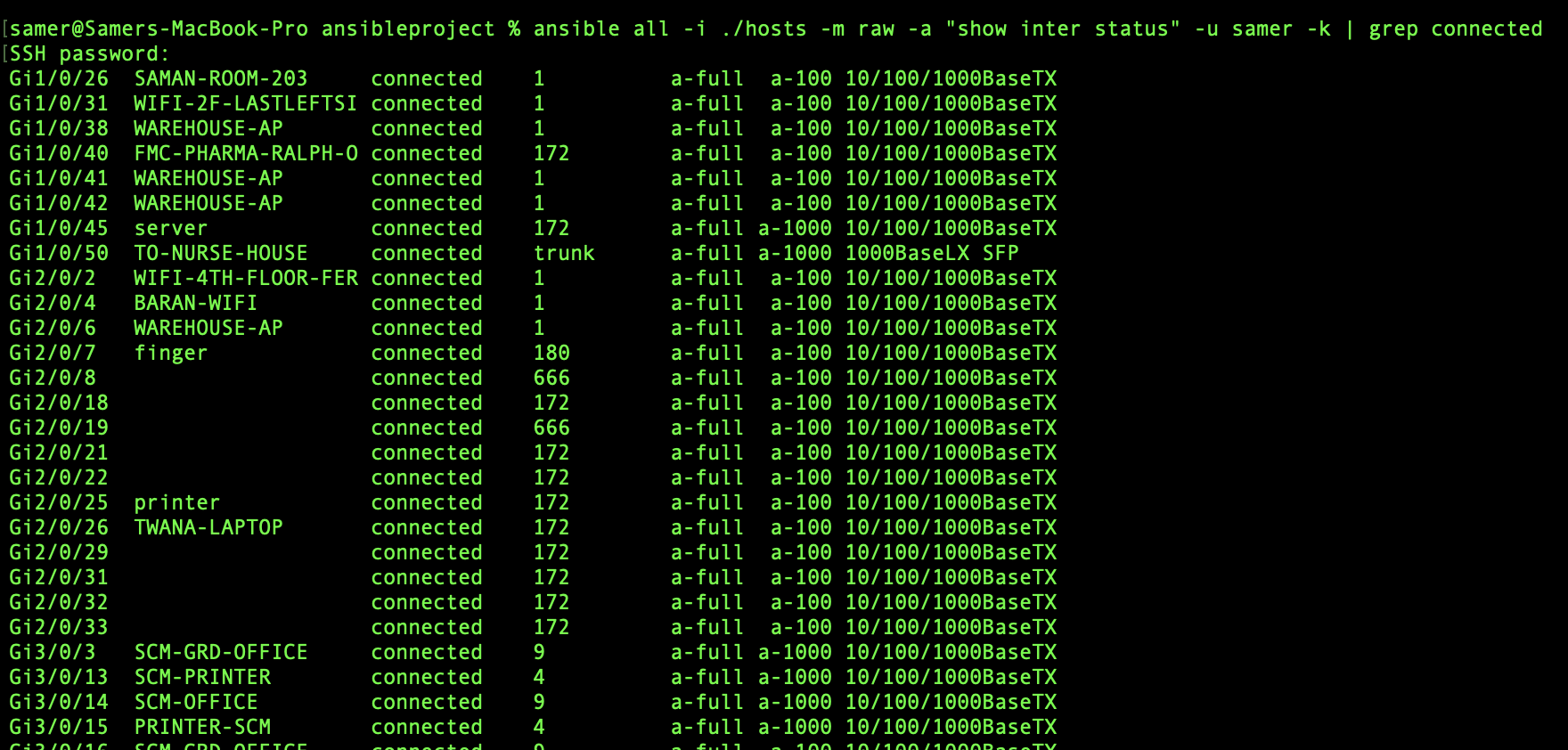
Ansible ad-hoc provides an easy and fast access to devices from your terminal and enables you to execute commands faster then the usual process, and also can help you access a list of multiple hosts at the same time and do stuff like gathering information in one line of command. 

here in my example below you can see how I used the ansible command to access a switch with ip of "10.211.10.36" and used some of the usual commands that we use on Cisco IOS to show configuration or information to do our daily tasks.


the ansible command I used was:

%ansible all -i ./hosts -m raw -a "show interface status" -u samer -k 

here the "all" means all the hosts ip addresses in the file name "hosts"

another output can be seen here below to "show arp" on the same switch:


while seeing the output like this seems very easy, but there might be some problems face you to get to the point that line of command can run without errors, so here is what I got and managed to fix with some google search:

1. Error about deffie-helman group between my MACOS and the switch which 

Fix:

Note: this error will be seen also when you try to make a direct ssh from your terminal to the switch without even using ansible, which makes it a problem in the ssh of the MACOS in this case and here is how to solve.

a. Go to cd /etc/ssh/ and use $sudo nano ssh_config

b. uncomment the following parts


c. paste the following at the end of the same file


save the changes and try to ssh again from your terminal, if that works then try your ad-hoc command and it should work fine.

2. Error about failing the connect to host via SSH and this showed up after fixing error 1 

Failed to connect to the host via ssh: mux_client_request_session: exitval sent twice\r\n"

Fix:

paste the following into the ansible.cfg file by using nano and then saving the changes

connection: local


I hope this was helpful 


Samer R. Saleem


Friday, November 5, 2021

Ansible Another Step Into Network Automation

 What is Ansible?

Ansible is a Network Automation tool, it works with YAML to push or get configs from a network device or group of devices or hosts.

Ansible works with SSH, which means you need to have NETMIKO or PARAMIKO installed along with your Python in order for Ansible codes to work.

how to Install Ansible?

simply by typing this command into your terminal (linux or MAC) $pip install ansible

you can then check your installed version using the command $ansible --version

like below:


Since we already mentioned that Ansible work with YAML as data modeling language, then this means we need to install YAML as well, you can install by:

$pip install PyYAML

below link shows more documents about YAML:

https://pypi.org/project/PyYAML/ 


NOTE: you might face problem while trying to run an Ansible code because of SSH keys between your Computer and the Network/host you are trying to connect to and this will cause an error similar to the following screen:


there is a workaround for this by adding some part in the configuration into the ansible.cfg file as below:


you can open a file and name it as ansible.cfg with nano

$nano ansible.cfg

then add

[defaults]

host_key_checking = false


save the file and run your ansible code again.


Ok, now onto writing a simple Ansible code to get_facts from a Cisco IOS device.

1. in order to do that, you need to have a list of hosts/host configured and that will be created in the same directory that I will be creating my ansible code from, which will be:

samer@Samers-MacBook-Pro ansibleproject % pwd

/Users/samer/Documents/ansibleproject


[cisco] is the group of devices/hosts, so it means you can list your hosts below just like Im listing (10.211.10.36) here for my testing.

[cisco:vars] as you can see is the other information like the OS and username and password of the device/host listed in group Cisco above.

Ok now let us create the Ansible code, which will be by creating a file that I named as test.yml (YAML) format file.


as you can see the file starts with (---)

then (-) name, group of hosts, connection type (SSH), then the tasks that ansible will be doing on the host (tasks:)

NOTE: white-spaces are really important and you will face problem in running the codes if you did not have the correct spacing. 

example of error caused by missing space:


Ok, so our ansible task will be to get the software version of the host (10.211.10.36) and this is done with the last task named "VIEW OS VERSION" which has the var: ansible_net_version

how to run the code now?

$ansible-playbook -i hosts testing.yml

Of course my terminal is already inside the same directory, if your path was not in same directory then you need to add the full path for the files.

(-i) here means inventory which means play ansible against the inventory in the path hosts and the ansible file is testing.yml

ansible will check the hosts/groups in the file called hosts and use the login information in the [var] to login to the host using SSH (NETMIKO/PARAMIKO).

once you fix all of the white-spaces issues and run the code, you should get the following screen of output:


The green screen! OK=1 and failed=0.


Note, you can use ad-hoc command for ansible to push fast commands and do things quickly on one host using the following format:

$ansible 10.211.10.36 -m raw -a "show version" -u samer -k

where k is prompt for password.

this is my introduction into Ansible for Network Automation.


good resources can be found here:

https://developer.cisco.com/startnow/

https://docs.ansible.com/ansible/latest/collections/cisco/ios/ios_command_module.html#examples

https://learningnetwork.cisco.com/s/question/0D53i00000mt0ZGCAY/mastering-ansible-for-the-devnet-associate-exam-derek-winchester


I hope this was useful.

Samer R. Saleem


Automating Network Configurations with Jinja2 and Python: A Step-by-Step Guide

 In this post, I worked on collecting a code that works with Jinja template. the nice thing in working with Jinja is that you can have basel...