Showing posts with label networksecurity. Show all posts

Friday, September 15, 2023

Automating Firewall Access with SSH Keys for Seamless Network Management


In this post we are going to talk about how to login to the firewall using public key generated from your Linux machine (Network Jumper box) which can be useful in case you want to push scripts to the firewall without the need to authenticate with username and a password, let's go:


1. generate the key

samer@Samers-MacBook-Pro ~ % ssh-keygen

Generating public/private rsa key pair.

Enter file in which to save the key (/Users/samer/.ssh/id_rsa):

/Users/samer/.ssh/id_rsa already exists.

Overwrite (y/n)? y

Enter passphrase (empty for no passphrase): press enter

Enter same passphrase again: press enter 

Your identification has been saved in /Users/samer/.ssh/id_rsa

Your public key has been saved in /Users/samer/.ssh/id_rsa.pub


here you have created the key on your machine, and you can check it using the command $ls ~/.ssh/ which will view the existence of the generated keys in your hidden directory  of ssh.

samer@Samers-MacBook-Pro ~ % ls ~/.ssh
id_ed25519 id_ed25519.pub id_rsa id_rsa.pub known_hosts

 now you need to copy the public key to the server or firewall or router you want to access and you can do this using:

1. SCP or....

2. importing it on the firewall using GUI.


press OK, then COMMIT.

now you can check access and as you can see below image, the user we used to access was api, if you don't specify the user, the terminal will use your machine name which is in this case "samer" and authentication will fail so we will use the same user "api" but no password will be prompted:


so the main idea here is that as network automation is important and it is recommended that you use LINUX machine as jumping box to do your scripts/codes to do your automation and programming tasks.

so it is better to use the SSH generated keys to login to devices, this will make running automated tasks easier and does not require user/password entering. (for example: no need to input password for netmiko while running a python script).

running CRON-TAB tasks that will also make access easier while it is still secure.


hope this was helpful.


Friday, December 10, 2021

Resolving Telemetry File Sending Issues on Palo Alto Networks Firewall

 In this post, I will be talking about a problem that you may face with PaloAlto Networks Firewall.

the problem can be seen with log that is generated by the Firewalls while trying to send telemetry file and failing:

10>Dec 6 23:40:04 FMC-PA-820-PRMARY 1,2021/12/06 23:40:04,0120010412345,SYSTEM,device-telemetry,2561,2021/12/06 23:40:04,,send-failed,,0,0,general,critical,"Failed to send: file

the problem above is informing us about the existence of an issue in sending telemetry file to PaloAlto cloud.

what does this means?

The firewall collects and forwards different sets of telemetry data to Palo Alto Networks based on the Telemetry settings you enable. The firewall collects the data from fields in your log entries (see Log Types and Severity Levels); the log type and combination of fields vary based on the setting. Review the following table before you Enable Telemetry.

source: https://docs.paloaltonetworks.com/pan-os/9-0/pan-os-admin/threat-prevention/share-threat-intelligence-with-palo-alto-networks/what-telemetry-data-does-the-firewall-collect.html 

it means we have to fix this issue because it is important.

ok, so one thing to notice here is that the relationship between PaloAlto firewall and PaloAlto cloud is a client-server relationship and since this is going via the internet, authentication and encryption must take a place in this process so secure the connection between Client-Server.

which means we need to authenticate our firewall in order to get the telemetry sent to PaloAlto Networks Cloud.

how we are going to authenticate? the answer is via certificate.

what you need to get this certificate?

1. Telemetry must be enabled and this can be done like this > click on settings icon and enable and choose region. then commit


2. Support and access to support portal of PaloAlto

3. Serial numbers of your firewalls that suppose to be under support.

once you logged in PaloAlto support portal go to > Assets > Device certificates > Generate OTP

here you will must select the serial of the asset and then generate the OTP and copy it.

now you must go back to > Device > Management > Device Certificate > Get Certificate

paste the OTP and apply it, this should make you see success fetch status like below.


Note: above image shows after the certificate import done.

Once all of these steps finished, you should be able to generate telemetry file by doing this>

Device > Telemetry > settings icon > Generate.


I hope this was useful.

Samer R. Saleem

Saturday, July 10, 2021

BGP Message Types logs and PCAPS


Introduction:

BGP stands for Border Gateway Protocol, as the name implies it is a protocol that works on our network border devices, BGP is a an application layer protocol and it does work with TCP protocol 179 to establish it's peering connection with neighbors.

BGP is the internet protocol, all external routing protocols that used and exchanged on the internet are with the help of BGP.

you can check BGP is "application" here:


as stated above (Routing protocol is "Application")


 BGP version4 does support Multi-protocol BGP which means (IPv6, L2VPN, IPv4, VPNv4, VPNv6)

BGP RFC 4271 link > https://datatracker.ietf.org/doc/html/rfc4271 

You can see the BGP version from the command show ip bgp summary below under the letter "V":


NOTE: BGP Version is not the same as BGP table version.


We are going to create a small lab for BGP using Cisco IOS and Cisco IOS-XE using GNS3.

This is going to be the topology:


As been mentioned that BGP uses TCP to establish connections with neighbors, check below pcap for the connection between two routers:


BGP messages exchanged between the Routers will be and of course will continue to be exchanged between the peers are:

1.OPEN messages (establishing TCP Connection)

2.UPDATES (Updates of prefixes advertised or withdrawn)

3.Keep Alive message (it is like a hello message to make sure peer is still alive)

4.Notification message(when error happen in the connections)


These messages can be seen in two ways:

1.Debug on the routers

2.Packet Capture 

We are going view both of them here below:

#debug BGP all

*Jul 10 06:15:19.833: BGP: ses global 12.12.12.2 (0x7FA8710B3168:0) pas Enhanced Refresh cap received in open message

    Line 2: *Jul 10 06:15:12.352: BGP: ses global 12.12.12.1 (0x7FA84FFADDB0:1) Send NOTIFICATION 6/4 (Administrative Reset) 0 bytes
    Line 4: *Jul 10 06:15:12.352: BGP: ses global 12.12.12.2 (0x7FA8710B2D08:1) Send NOTIFICATION 6/4 (Administrative Reset) 0 bytes
    Line 5: *Jul 10 06:15:12.352: %BGP-3-NOTIFICATION_MANY: sent to 2 sessions 6/4 (Administrative Reset) for all peers


CSR#debug ip bgp updates


*Jul 10 06:21:01.715: BGP(0): 12.12.12.2 rcvd UPDATE w/ attr: nexthop 12.12.12.2, origin i, metric 0, merged path 2, AS_PATH
*Jul 10 06:21:01.715: BGP(0): 12.12.12.2 rcvd 123.123.123.1/32
*Jul 10 06:21:01.715: BGP(0): Revise route installing 1 of 1 routes for 123.123.123.1/32 -> 12.12.12.2(global) to main IP table
*Jul 10 06:21:01.715: BGP_Router: unhandled major event code 128, minor 0
*Jul 10 06:21:01.717: BGP(0): 12.12.12.1 NEXT_HOP is on same subnet as the bgp peer and set to 12.12.12.2 for net 123.123.123.1/32, flags 200, sb: C0C0C00, mask: FFFFFF00
*Jul 10 06:21:01.717: BGP(0): (base) 12.12.12.1 send UPDATE (format) 123.123.123.1/32, next 12.12.12.2, metric 0, path 2
*Jul 10 06:21:01.718: BGP(0): 12.12.12.1 rcvd UPDATE w/ attr: nexthop 12.12.12.2, origin i, merged path 1 2, AS_PATH
*Jul 10 06:21:01.718: BGP(0): 12.12.12.1 rcvd 123.123.123.1/32

As you can see above, we have notification, updates, open message, below the keepalives>>>

#debug ip bgp keepalive

*Jul 10 06:22:43.252: BGP: 12.12.12.1 KEEPALIVE write request serviced in BGP_IO
*Jul 10 06:22:43.252: BGP: 12.12.12.1 service 1 read request in BGP_IO
*Jul 10 06:22:43.990: BGP: 12.12.12.2 passive KEEPALIVE write request serviced in BGP_IO
*Jul 10 06:22:43.990: BGP: 12.12.12.2 passive KEEPALIVE requested (rcv_open)
*Jul 10 06:22:43.990: BGP: ses global 12.12.12.2 (0x7FA879168DC8:0) pas service keepalive IO request.
*Jul 10 06:22:43.991: BGP: 12.12.12.2 passive KEEPALIVE write request serviced in BGP_IO
*Jul 10 06:22:43.991: BGP: 12.12.12.2 passive service 2 read request in BGP_IO

*Jul 10 06:22:43.991: BGP: 12.12.12.2 passive received KEEPALIVE, length (excl. header) 0

*Jul 10 06:22:43.991: %BGP-5-ADJCHANGE: neighbor 12.12.12.2 Up

The other way is to use the PCAP using wireshark capturing on GNS3 (this is of course in lab environment):


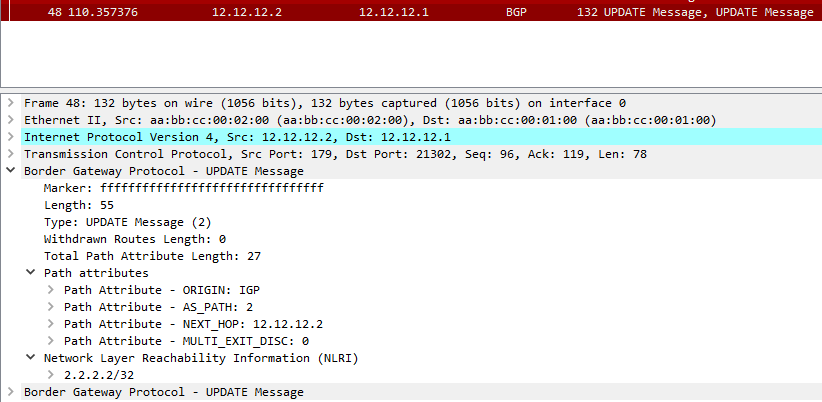
Let's check the update message here and see what does it contain.


As you can see here, the NLRI is being advertised in the update message and it has Router2 loopback prefix (2.2.2.2/32) as it is being sent to Router1.


I hope this was useful for you!


Samer R. Saleem.


First Image Source: Cisco.com


Saturday, June 5, 2021

NATing same IP public address for different service (port forwarding)-Destination NAT

05/06/2021

Author: Samer R. Saleem

Subject: NATing per service (port forwarding)


As you might see on another posts, Network requirements change from time to time, which will impose new changes each time.

One of the new scenarios that came into my table was allowing a remote sever to access three finger print devices that works with UDP service.


Of course, I need to make use of my public IP and not waste IP addresses, and sure, the obvious solution for this requirement would be the Network Address translation (NAT).


The following diagram represents the idea of the connection:


 So, our target is to translate the incoming connection according to the requested service:

or example:

if the connection was for the IP: X.X.X.X with UDP port 5500, the Firewall will translate the connection destination to 10.10.180.11


if the connection was for the IP: X.X.X.X with UDP port 5501, the Firewall will translate the connection destination to 10.10.180.12


Finally, if the connection was for the IP: X.X.X.X with UDP port 5502, the Firewall will translate the connection destination to 10.10.180.13


Login to firewall user interface
go to policies > NAT > add

to add a rule with the name of finger print device do the following:
source zone outside destination outside  (the first outside is the internet, the second one is Interface outside of the firewall)
destination IP is X.X.X.X  (which is a real public IP address that you will use to make port forwarding)
service must be (5500, 5501, 5502) 
>>> (if not defined, you can define under objects tab). 

screenshot on how to do that:


here is how to configure and will use the first finger print device in my examples:

Source is outside > destination outside with port > 5500

destination address is the PUBLIC IP (X.X.X.X)

now, go to next tab (Translated Packet), which will take action after the packets translated and will redirect the traffic to internal IP address of the Finger print device1

fill the details as below, and then press OK


 once you done this for device1 you can repeat the process for the other devices.


then allow security access rule
go to security policy
add a new rule
source zone outside, address any to inside zone destination is 95.159.105.100 service ports are 5500,5501,5502 > action is allow


then commit configs


Hope this was useful!


Samer R. Saleem


Automating Network Configurations with Jinja2 and Python: A Step-by-Step Guide

 In this post, I worked on collecting a code that works with Jinja template. the nice thing in working with Jinja is that you can have basel...