Saturday, October 13, 2018

SNMPv3-understanding and implementation


SNMPv3 doesn't user community-strings like SNMPv1 and SNMPv2

SNMPv3 can you authentication (MD5 and SHA) and encryption with ( AES and 3DES)

in addition to authentication and encryption, SNMPv3 has a message integrity which ensures the packet has not been changed during transit.


SNMPv3 security levels:

1. noAuthNoPriv  Only username required, no password and no encryption is done.
2. AuthNoPriv MD5 or SHA is used and no encryption
3.AuthPriv in here MD5 and SHA used for authentication plus encryption.


Configuring SNMPv3:

To configure SNMPv3 we need the following

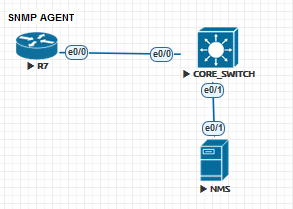
1. SNMP agent which is a Router or Switch (devices we need to connect to SNMP manager)
2. SNMP manager which is the (NMS)

we will configure the SNMP agents:

#snmp-server group CCIE v3 priv

this group will be configured with security model

Now we create the user for this group

#snmp-server user ADMIN CCIE v3 auth MD5 cisco priv AES 128 KEY123


Verify:

Router#show snmp user

User name: ADMIN
Engine ID: 800000090300AABBCC007000
storage-type: nonvolatile        active
Authentication Protocol: MD5
Privacy Protocol: AES128
Group-name: CCIE


#show snmp group
groupname: CCIE                             security model:v3 priv
contextname: <no context specified>         storage-type: nonvolatile
readview : v1default                        writeview: <no writeview specified>
notifyview: <no notifyview specified>
row status: active


Now we have finished configuring the (snmp agent) we will configure the NMS to add the router

all you need to do is add new device, specify the name, choose the snmp version 3 and add the authentication method and user and password and add.


Tuesday, October 9, 2018

BGP Backdoor

BGP backdoor is a way to prefer a higher administrative distance protocol over eBGP for a specific prefix.
for example blow layout:

we have eBGP connection with (R1-R3) but it's with serial link which has a lower bandwidth than our EIGRP link with (R1-R5) from a network performance point of view, we would need to use the higher bandwidth link, and keep low speed link as backup, since we have eBGP we can do that using (BGP backdoor) feature, which would allow router to install a higher administrative distance protocol in the RIB for the same prefix instead of eBGP which is (20)

in each router we have internal link to core switch which will be (192.168.X.X) where X is the router name.

let's configure it:

First step we will configure normal BGP and EIGRP, and we will advertise INTERNAL lan on R3 under both BGP and EIGRP, and we will see R1 is using the route coming via eBGP
R1#show ip route bgp | b Gate
Gateway of last resort is not set

B     192.168.3.0/24 [20/0] via 13.0.0.3, 00:00:28
R1#


R1#show ip cef 192.168.3.0
192.168.3.0/24
  nexthop 13.0.0.3 Serial1/1


Now let's configure BGP Backdoor feature on R1 in order to use the better performance link
R1:
#router bgp 1
#network 192.168.3.0 mask 255.255.255.0 backdoor

showing IP BGP table you will notice (r>) which indicates RIB failure due to Higher administrative distance

R1#show ip bgp | be RPK
RPKI validation codes: V valid, I invalid, N Not found

     Network          Next Hop            Metric LocPrf Weight Path
 *>  192.168.1.0      0.0.0.0                  0         32768 ?
 r>  192.168.3.0      13.0.0.3                 0             0 3 i

R1#show ip bgp rib-failure
  Network            Next Hop                      RIB-failure   RIB-NH Matches
192.168.3.0        13.0.0.3               Higher admin distance              n/a
R1#


Now checking the routing table (RIB) which will show the installed routes that will be used to reach prefixes.

R1#show ip route eigrp  | be Ga
Gateway of last resort is not set

      35.0.0.0/24 is subnetted, 1 subnets
D        35.0.0.0 [90/307200] via 15.0.0.5, 00:07:27, Ethernet0/0
D     192.168.3.0/24 [90/435200] via 15.0.0.5, 00:00:26, Ethernet0/0
D     192.168.5.0/24 [90/409600] via 15.0.0.5, 00:08:07, Ethernet0/0
R1#
Now (R1) is using EIGRP with AD of (90) path instead of (eBGP).

Final check:

R1#traceroute 192.168.3.3 num
Type escape sequence to abort.
Tracing the route to 192.168.3.3
VRF info: (vrf in name/id, vrf out name/id)
  1 15.0.0.5 1 msec 0 msec 1 msec
  2 35.0.0.3 1 msec *  2 msec
R1#


I hope this is useful.


Friday, October 5, 2018

Serial Links bundling with MLPPP

Since a serial link have limitation when it comes to bandwidth, bundling multiple serial links into one link would be a good solution, so having a simple topology like the one below, we will configure a feature that allows us to combine serial links into one, here we have S1/0-3 between R1 which is the Server Router that we can consider as ISP and R2 which is the client router that will get IP address from R1

R1:
starting with creating a virtual interface that will have the IP address configured on it
# interface Multilink1
#ip address 12.0.0.1 255.255.255.0
# peer default ip address pool R1-IP
# ppp multilink
# ppp multilink group 1  

enabling ppp multilink and configuring group1 that we will associate the serial interfaces to it later

the IP address of the Client will be acquired from R1 and that is by using the command
#peer default ip address pool POOL-NAME
and # ip local pool R1-IP 12.0.0.12

now we have created the virtual multilink interface, yet the interface is not up/up, so its time to add interfaces into this multilink.

#interface Serial1/0-3
 #no ip address
 #encapsulation ppp
 #ppp multilink
 #ppp multilink group 1

on Client side we will configure the multilink same as in R1 but we will rely on DHCP to get ip address from R1 and that is done by using #ip address negotiable 
#interface Multilink1
 #ip address negotiated
 #ppp multilink
 #ppp multilink group 1


eventually the Multilink interface will become UP/UP state
time for some verifications:

R2-CLIENT#show ppp all
Interface/ID OPEN+ Nego* Fail-     Stage    Peer Address    Peer Name
------------ --------------------- -------- --------------- --------------------
Mu1          IPCP+ CDPCP+          LocalT   12.0.0.1                       
Se1/0        LCP+                  LocalT   12.0.0.1                       
Se1/1        LCP+                  LocalT   12.0.0.1                       
Se1/2        LCP+                  LocalT   12.0.0.1                       
Se1/3        LCP+                  LocalT   12.0.0.1
                       
R2-CLIENT#

R2-CLIENT#show inter multilink 1
Multilink1 is up, line protocol is up
  Hardware is multilink group interface
  Internet address is 12.0.0.12/32
  MTU 1500 bytes, BW 6176 Kbit/sec, DLY 20000 usec,
     reliability 255/255, txload 1/255, rxload 1/255
  Encapsulation PPP, LCP Open, multilink Open

As you can see above, the multilink bandwidth is the total of all links added to the MLPP and now it is 6176Kbps.

while the physical interface will have original BW
R2-CLIENT#show inter s1/0
Serial1/0 is up, line protocol is up
  Hardware is M4T
  MTU 1500 bytes, BW 1544 Kbit/sec, DLY 20000 usec,
     reliability 255/255, txload 1/255, rxload 1/255
  Encapsulation PPP, LCP Open, multilink Open


Hope this was useful!
Samer R. Saleem

Monday, October 1, 2018

Anycast-MSDP small Lab

Anycast is used to define redundant and load-balanced RPs (Rendezvous Point)
the configuration involve using (MSDP) and (PIM)

Anycast-RP allows two or more RPs to share the load for source registration and to act as hot back-up routers for each other. Multicast Source Discovery Protocol (MSDP) is the protocol RPs to share information about active sources. With Anycast RP, the RPs are configured to establish MSDP peering sessions using a TCP connection. Group participants use the closest RP that is favored by the IP unicast route table, so if you are using IGP the router will choose the lowest metric to any of the RP's.

Let's do some configurations, first I'm going to list the steps

1. we need routing and I will use OSPF.
2. decide which routers will be used as RP and if its going to be static or auto-rp or standard
3. which router will be used to disseminate multicast information and which protocol is going to be used(the MA or the BSR)?
4. create an identical loopback on both RP's (same IP) that would be used for the RP information
for example: Loopback0 will be assigned the ip address of 23.23.23.23/32 on both RP's (R2 and R3)
5. advertise this loopback interface into the IGP to be reachable from other routers
6. configure the MSDP which is a TCP connection to connect both RP's together using Loopback interface that is unique between the two RP's and this interface will be Loopback1 (2.2.2.2/32 and 3.3.3.3/32)
7. the MSDP interface also must be advertised into IGP
8. Join the multicast group 239.1.1.1
9. test the multicast traffic send/receive

Topology:


 Configuration:

R1:
#enable
#conf ter
# router ospf 1
# network 0.0.0.0 255.255.255.255 area 0
#exit
#ip pim rp-address 23.23.23.23
#interface E0/0
#ip pim sparse

R2: (RP)
#enable
#conf ter
#ip multicast-routing
#Router ospf 1
#router-id 2.2.2.2
#network 0.0.0.0 255.255.255.255 area 0
#ip pim rp-address 23.23.23.23
#ip msdp peer 3.3.3.3 connect-source Loopback1
#ip msdp originator-id Loopback1
#interface range e0/0-1,lo0,lo1
#ip pim sparse

R3: (RP)
#ip multicast-routing
#router ospf 1
# router-id 3.3.3.3
# network 0.0.0.0 255.255.255.255 area 0
#ip pim rp-address 23.23.23.23
#ip msdp peer 2.2.2.2 connect-source Loopback1
#ip msdp originator-id Loopback1

#interface range e0/0-1,lo0,lo1
#ip pim sparse

R4:

#enable
#conf ter
#ip multicast-routing
#router ospf 1
#network 0.0.0.0 255.255.255.255 area 0
#ip pim rp-address 23.23.23.23
#interface range e0/0-1
#ip pim sparse

Multicast-Receiver:

#enable
#conf ter
# ip multicast-routing
#ip pim rp-address 23.23.23.23
#inter e0/1
#ip pim sparse
#ip igmp joing 239.1.1.1
#router ospf 1
#net 0.0.0.0 255.255.255.255 area 0

 ============================

Verification:

On R1>
R1#show ip pim rp map
PIM Group-to-RP Mappings

Group(s): 224.0.0.0/4, Static
    RP: 23.23.23.23 (?)

since the lowest metric RP to R1 is R2, then it would be the one selected.


on R2 (RP):
R2#show ip mroute | be VCD
 Interface state: Interface, Next-Hop or VCD, State/Mode

(*, 239.1.1.1), 00:04:31/stopped, RP 23.23.23.23, flags: SP
  Incoming interface: Null, RPF nbr 0.0.0.0
  Outgoing interface list: Null

    (source, Group)
(16.0.0.6, 239.1.1.1), 00:00:21/00:02:38, flags: TA   \\this indicates Spt-bit and MSDP
  Incoming interface: Ethernet0/0, RPF nbr 12.0.0.1
  Outgoing interface list:
    Ethernet0/1, Forward/Sparse, 00:00:21/00:03:08


 R2#show ip msdp peer
MSDP Peer 3.3.3.3 (?), AS ?
  Connection status:
    State: Up, Resets: 0, Connection source: Loopback1 (2.2.2.2)
    Uptime(Downtime): 00:49:41, Messages sent/received: 53/50

 R2#show ip pim interface count

For switching state use "show ip mfib interface"
Address          Interface                Mpackets In/Out
23.23.23.23      Loopback0                0/0
2.2.2.2          Loopback1                0/0
12.0.0.2         Ethernet0/0              19/0  [incoming interface]
23.0.0.2         Ethernet0/1              0/19 [outgoing interface]


Sunday, July 9, 2017

Installing Firepower on Cisco ASA

Cisco ASA Firepower installation process is little bit complicated and require multiple steps in order to do


First please check the simple topology:


Part 1 installing FMC [FireSight Management Center] vm

You can download the .OVf file from Cisco.com and install it by using Esxi Vsphere tool to import
the file which is linux based
The following is used for installation process on the esxi

  1. Open vsphere client
  2. Go to file > deploy OVF template
  3. Browse the .ovf file on your computer
  4. Click next
  5. Choose think provisioned as a size on disk
  6. Choose the name of the VM for example [FireSight VM]
  7. Choose the data store on your host
  8. Select the network mapping
  9. Finish then power it on

Note: there is no need to allocate resources because the vm is already have the resources allocated.


Installation Process:

  1. After powering on the vm wait for the counter to finish
  2. After the machine starts you can login to it using admin as username and password is Admin123
  3. To login into root you need to use command sudo su -   and the password is Admin123
  4. You need to add IP address for the FMC and you must be on Root user to be able to change settings
  5. After you login as "root" type the command #configure-network then you will have auto-config questions
  1. IPv4 configs
  2. Subnet mask
  3. Gateway
The Network settings will be updated.

NOTE: you need to enable the IP address of FMC to reach internet, so you need to add the IP on the firewall
 and also create route under static routing

After everything is done you can use the following command on your browser to login to FMC https://172.16.14.50    
for example.

NOTE: Management Interface will need to be shutdown and ip removed from it.

Part two Cisco Firepower image+ package upload to firewall and installation

You will need the following in order to accomplish this:
  1. IOS version stable and recommended by cisco I used IOS 9.6.3.1 which was recommended by Cisco
  2. ASASFR boot image which is ".img"
  3. ASASFR system package which is ".pkg"
  4. FTP server which will be used to upload both .img and .pkg to the Firewall and SFR
  5. TFTP server  which will be used to upload Cisco IOS for ASA Firewall

Start installation of Cisco Firepower .img File:

  1. Locate the image when you upload into Disk0:/ on the Firewall and of course you must have
  2.  SSD installed on the Firewall
  3. Copy the correct full name of the image for example "asasfr-5500x-boot-6.2.0-2.img"

Before you start installing the SFR make sure to do the following:

  1. Shutdown IPS module and uninstall it.
  2. Shutdown CXSC module and uninstall it
  3. Shutdown SFR module and uninstall it


This can be done using the commands:
#sw-module module ips shutdown
#sw-module module ips uninstall
#sw-module module CXSC shutdown
#sw-module module CXSC uninstall
And same for SFR module

Make sure that they are down by using the command #show sw-module and see if they are "DOWN"

After this process you will need to start installing the Boot Image that you already uploaded to the Firewall Disk0:/

We will use the following commands to install it:

#sw-module module sfr recover configure image disk0:/asasfr-5500x-boot-6.2.0-2.img
#sw-module module sfr recover boot    [you can enable debugging to follow up the process during the
 boot process #debug module-boot

NOTE: in here you will need to wait for the process for 15 minutes so don’t rush it!!!!

Now after the installation finishes you will need to login to the SFR in order to upload the package file to it
 using FTP so first we will need to have IP address on the SFR
In order to upload the Package file to it
Lets setup these IP information:
#session sfr console  [note if the installation wasn’t finished then you won't be able to do this command]
Use the username admin and password Admin123 to login to the SFR console

Now start configure it #ASASFR-BOOT> setup
You will now be prompted to add information for IPv4, IPv6, NTP, DNS, Domain …etc. then you will be
asked if you want to apply it n/y??

After you finished the setup part, you will have ip address reachable in order to transfer the package to
 the Boot Image and install it

Use FTP tool like FileZilla for the transfer, locate the package file on it and create username and password
that will be used to access your FTP server and get the file

FTP command ASASFR-BOOT > system install ftp://username:password@IP-address/ASASFR.pkg    
The FTP process will take some time because the package size is big.

After upload finish the SFR will start to extract.

You will be asked if you want to upgrade then just say "Y" and press enter.

NOTE: this process will take up to 15 minutes so don’t rush it!!!!!

After this finishes and if everything is ok you should see the result by using
#show module   [it should be up]
FMC-ASA# show module sfr

---- ------------------------------ ---------------- --------------------------
 sfr ASA FirePOWER                  Up               6.2.0-362

Mod  Status             Data Plane Status     Compatibility
---- ------------------ --------------------- -------------
 sfr Up                 Up                   


#show failover  [you must see the SFR card in here and in UP/UP state]

Last Failover at: 18:16:40 AST Jul 6 2017
        This host: Primary - Active
                Active time: 241396 (sec)
                slot 0: ASA5512 hw/sw rev (1.0/9.6(3)1) status (Up Sys)
                  Interface Outside (X.X.X.X): Normal (Monitored)
                  Interface Inside (10.211.250.253): Normal (Monitored)
                  Interface DMZ (172.16.16.253): Normal (Monitored)
                slot 1: SFR5512 hw/sw rev (N/A/6.2.0-362) status (Up/Up)
                  ASA FirePOWER, 6.2.0-362, Up, (Not-Monitored)
        Other host: Secondary - Standby Ready
                Active time: 402 (sec)
                slot 0: ASA5512 hw/sw rev (1.0/9.6(3)1) status (Up Sys)
                  Interface Outside (X.X.X.X): Normal (Monitored)
                  Interface Inside (10.211.250.252): Normal (Monitored)
                  Interface DMZ (172.16.16.252): Normal (Monitored)
                slot 1: SFR5512 hw/sw rev (N/A/6.2.0-362) status (Up/Up)
                  ASA FirePOWER, 6.2.0-362, Up, (Not-Monitored)


NOTE: you might face some problem if you have the SFR installed on Different slot on active from the one on
 standby so you must use this command on the active
#no monitor-interface service-module   [this is very important because it can cause the 
standby ASA to become active at the same time and
cause connection problem]


Ok, after the SFR Card becomes UP you can start configuring it
#session sfr       [username admin and password Admin123]

Now setup IP addresses for the SFR itself [note the previous IP addresses were for the Boot Image not for the SFR system]
These IP's will be used to connect the SourceFire "firepower" to Firesight.


Now, Let's connect the Cisco Firepower to Cisco FireSight

  1. Connect to SSH on the IP address of the SFR module "172.16.14.51"
  2. Input the username admin and password is Admin123 "default"
  3. Add the command system> configure manager add 172.16.14.50 cisco1234   
  4.  (where 172.16.14.50 is the Firesight server, and cisco1234 is shared key between two systems)
  5. Go to 172.16.14.50 (firesight) and then go to >Devices >device management> add device
  6. Full the information for the Firepower and then click on register

At the same time you can use Firepower command line to check if the registration was completed
system> show managers and see if the status is complete or still pending.


Hope this was useful!

Samer R. Saleem


Sunday, July 2, 2017

OSPF DR/BDR Election Manipulation- quick review

DR/BDR is very important part of Broadcast and Non-Broad cast multi-access OSPF network types and it is needed in an Area in order to get LSA1 from OSPF routers and rely LSA2 to the OSPF routers about the network information for all OSPF routers, please know that the below information is my notes that i have been writing down from my study for CCIE.

DR/BDR on OSPF is determined per interface level so you can have for each vlan/interface different DR/BDR from the other
You can increase priority for the DR by setting #ip ospf priority 255 [the maximum is 255] and [0] means the router or the
interface will not participate in election.

Choosing the DR is by priority, highest router id, highest loopback ip, highest physical interface ip
Choosing the DR/BDR is only on broadcast and non-broadcast network types on the OSPF

NOTE: preemption is not supported, so any device need to wait for the DR to fail until it can take over.
NOTE: if no router declared itself as DR then the router will say that I am the DR/BDR


You can check DR/BDR election process by #debug ip ospf adj    [and shutdown the DR router and monitor the debug messages]
*Jul  1 17:43:06.361: OSPF-1 ADJ   Et0/0: Neighbor change event
*Jul  1 17:43:06.361: OSPF-1 ADJ   Et0/0: DR/BDR election
*Jul  1 17:43:06.361: OSPF-1 ADJ   Et0/0: Elect BDR 150.1.1.1
*Jul  1 17:43:06.361: OSPF-1 ADJ   Et0/0: Elect DR 150.1.1.1
*Jul  1 17:43:06.361: OSPF-1 ADJ   Et0/0: Elect BDR 0.0.0.0
*Jul  1 17:43:06.361: OSPF-1 ADJ   Et0/0: Elect DR 150.1.1.1

On the hub/spoke the Full state will be with the DR only, so it must be HUB configured as DR in order each spoke will form
 full adjacency with it.
Because spokes are not active to talk OSPF between each other so the spoke will form full adjacency with DR and the BDR only.
If spoke becomes DR, the OSPF database will be broken and the routing will be incomplete.
That’s why you need to make sure all spokes priority are set to 0

NOTE: both DR/BDR will receive LSA1 in Area but only DR will rely the information back to the rest of the network. So if R5 was BDR but not DR, the OSPF DB will be broken
Because for example: R2 will send LSA1 to R5 and R4 but only R4 will be able to reply the information to all the routers but it's not the HUB so the process will fail.

NOTE: when you here the OSPF DB is broken, think about the DR location in the Network.

Wednesday, June 7, 2017

Proxy ARP - quick review

Proxy arp is a feature that is recommended to disable if you have a router facing interne.
 
and better to enable only on interfaces that are working in an internal LAN.
 
 
#ip proxy-arp  [will make the router advertise itself "mac address" as the mac address of the destination needed instead of the real device]

 Disable ARP proxy globally is 
# ip arp proxy disable and under interface is 
#no ip proxy-arp 

Ok, so now what is the proxy ARP? 
It’s a feature that is enabled by default on Routers that enabled the router to direct the traffic for
network that doesn’t have Reach-ability to destination when the router interface have the route to it.


If you disable the Proxy-ARP on interface the router 1 will not be able to reach router6 loop-back interface, the reason is it won't be able to get L2 mac address Of the destination, [the reason is using ip route to exit interface of the router instead of IP address of next hop]
if you enable debug for it #debug IP packets you will see encapsulation error,
which means router failed to build Layer 2 frame

The solution
 is to

  • hard-code the ARP and mac address for the destination then it will be reachable.
  • Or enable the proxy ARPon interface
  • Use IP route to next hop address instead of pointing to the exit interface


Automating Network Configurations with Jinja2 and Python: A Step-by-Step Guide

 In this post, I worked on collecting a code that works with Jinja template. the nice thing in working with Jinja is that you can have basel...